
Picture this: you are at a warung, a friend wants to split the bill, and they ask, “Hey, what is your GoPay QRIS code?” You open the app, tap around aimlessly, and suddenly feel like you are lost in a digital maze. Sound familiar? You are definitely not alone. A lot of GoPay users, even regular ones, are not sure exactly where their personal QRIS code lives inside the app. If you have ever wondered how to find your GoPay QRIS code, this guide is going to sort that out for you, once and for all.
Share your referral code with friends and family. When they sign up and complete a transaction, you earn points or rewards based on the active program.
*Rewards and mechanics may vary by program period. Terms and conditions apply.
What Is a GoPay QRIS Code, Exactly?
QRIS stands for Quick Response Code Indonesian Standard, a unified QR payment standard introduced by Bank Indonesia. Your GoPay QRIS code is essentially your personal payment address in QR form. Anyone with a compatible app can scan it and send money straight to your GoPay balance. No bank account number needed, no manual input, just a scan and done.

1. Who Can Use a GoPay QRIS Code?
Both personal GoPay users and GoPay for Business (merchant) accounts have a QRIS code. If you are a regular user, you can use yours to receive money from friends or family. If you run a small business, your merchant QRIS is what customers scan when they pay you.
2. Is It the Same as a GoPay QR Code?
Technically, GoPay has always had its own in-app QR code. The QRIS version is the standardized, interoperable one, meaning people using other apps like OVO, Dana, ShopeePay, or even their bank apps can scan it and the payment still goes through. It is the more universal option, and it is the one you will want to use most of the time.
How to Find Your GoPay QRIS Code Step by Step
Good news: your GoPay QRIS code is not hidden deep in some settings menu. It is right on the surface once you know where to tap. Here are the main methods to access it.
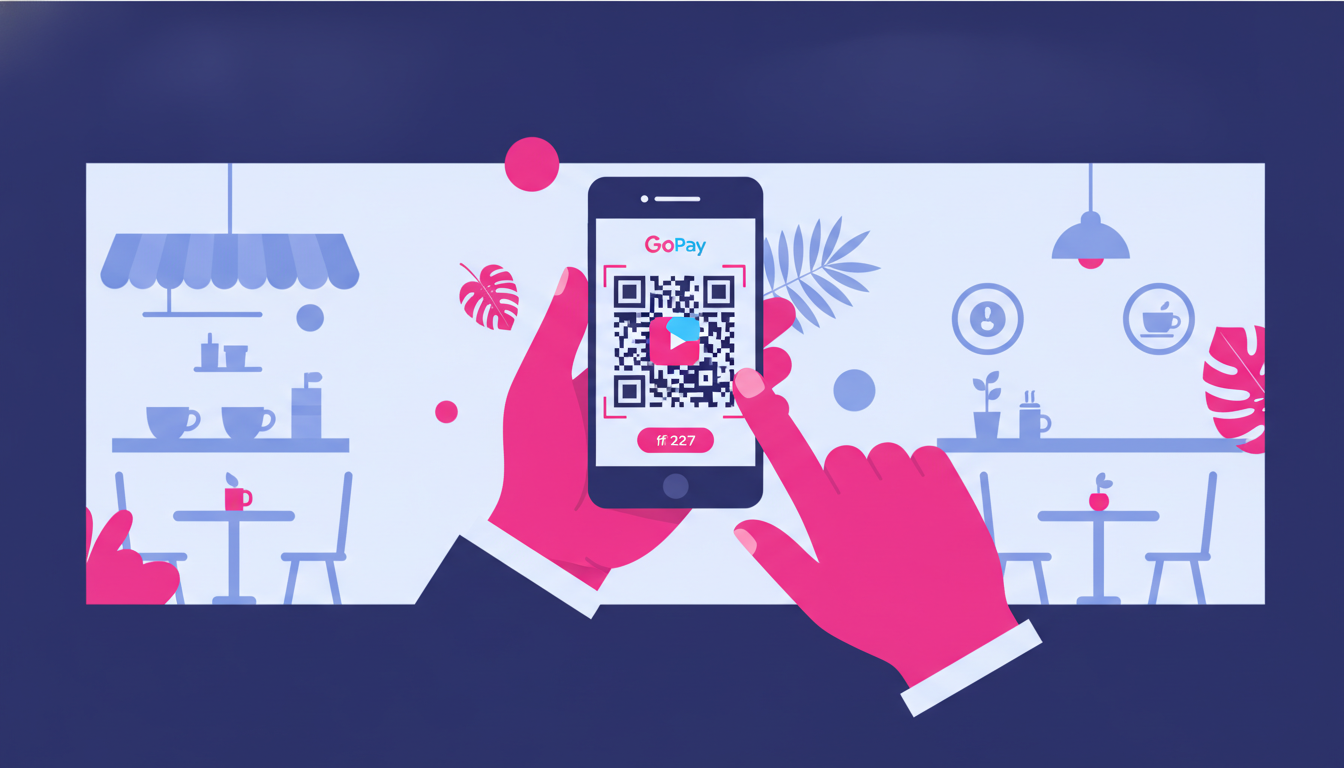
1. Find It from the GoPay Home Screen
- Open the Gojek app on your smartphone.
- On the home screen, look for the GoPay section, usually near the top of the page.
- Tap on your GoPay balance to go into the GoPay wallet screen.
- You will see a QR code icon or a button labeled Terima (Receive) or sometimes My QR.
- Tap it, and your personal QRIS code will appear on screen, ready to be scanned.
That is it. Five taps and you are there. The QR code displayed is your personal GoPay QRIS code that others can scan using any QRIS-compatible app.
2. Use the Scan and Pay Section
- From the Gojek home screen, tap the scan icon (looks like a small QR grid, usually at the top of the screen).
- Once the scanner opens, look for a tab or toggle that says My QR or Kode QR Saya.
- Switch to that tab, and your QRIS code will display.
This method is great when you are already in scanning mode but need to flip it around so someone else can scan you instead.
3. Access It from Your GoPay Profile or Account Details
- In the Gojek app, tap your profile icon (top left or top right, depending on your version).
- Navigate to GoPay settings or account details.
- Look for a QR Code or QRIS option.
- Tap it to view your code.
This path is useful if you want to save or screenshot your code for future sharing, for example sending it over WhatsApp so someone can pay you later.
How to Save and Share Your GoPay QRIS Code
Once your QRIS code is on screen, you are not limited to letting people scan it live. You can save it and share it digitally, which is perfect for small business owners or freelancers who want to display their code on social media or in a digital invoice.

1. Screenshot or Download Your QRIS Code
When your QRIS code is on screen, look for a Save or Download button. Many versions of the app let you save the QR directly to your photo gallery. If not, a quick screenshot works just as well. From there, you can share it via chat, email, or print it out for a physical display at your stall or workspace.
2. Share It Directly from the App
Some GoPay versions have a Share button right next to the QR display. Tapping it lets you send your code instantly through WhatsApp, Instagram, or any other app on your phone. Super convenient for freelancers or anyone selling things online.
Tips for Using Your GoPay QRIS Code Smoothly
1. Make Sure Your Screen Brightness Is High
Scanners can struggle in dim lighting or with a low-brightness screen. Before someone scans your code, crank up your screen brightness. It makes the process faster and less awkward for everyone.
2. Keep Your App Updated
The Gojek app gets updated frequently. If you cannot find the QRIS option where this guide describes, check if your app needs an update. An outdated version might have a different layout or missing features.
3. Verify the Payment Was Received
After someone scans and pays, you should get an in-app notification and your balance should update almost instantly. Always check before handing over goods or confirming a transaction is done.
4. One Code, Multiple Senders
Your QRIS code does not change after each use. It is a permanent code tied to your account, so you can share it as many times as you like without generating a new one each time. Think of it like your digital payment address.
What If Your GoPay QRIS Code Is Not Showing?
Occasionally, the QRIS feature might not appear for your account. This can happen if your GoPay account is not fully verified. Make sure you have completed the identity verification steps inside the app, including uploading your KTP if required. Unverified accounts may have limited features, and QRIS access is sometimes one of them.
If everything looks verified and the feature is still missing, try logging out and back in, clearing the app cache, or reinstalling the app. If none of that helps, reaching out to GoPay customer support through the in-app help center is your best bet.
See Also: How to Deactivate GoPay Later: Complete Guide for Users
Perfect for community managers, group admins, content creators, or anyone who wants to help others send money abroad — and get rewarded for it.
- ✓Promote Transfez using your affiliate link or code
- ✓Earn a commission each time a referred user completes a transaction
- ✓Official program — full info page & T&Cs available
*Terms and conditions apply. Rewards are subject to change in accordance with program policy.
Download the Transfez App
The Transfez app helps you send money abroad faster, cheaper, and more efficiently. Jack Finance can also support your company's cross-border transactions. Sending money to family studying, working, or traveling overseas? Transfez has you covered. Available on Android and iOS — download now!